For Android phones
Your calendars,
in one feed.
The calendars on your phone and the calendar links you subscribe to (school, team, class, work) in one read-only agenda. Every source shows when it last refreshed.
- No account needed
- Read-only
- Stays on your phone
The problem
Your week is scattered across a handful of calendars.
Practice times live on the league site, deadlines in Canvas, meetings on the work calendar. Keeping up means checking several apps and links, and hoping each one is current.
Too many places to check
The school calendar, the team schedule, the class site and your work calendar each live somewhere different.
Calendar links with nowhere to go
Schools, leagues and course sites hand out calendar links, but it isn’t always clear where to put them.
Quiet, or just out of date?
When a subscribed calendar looks empty, it’s hard to tell whether nothing is planned or it simply hasn’t refreshed.
Calendar Feed brings them into one agenda, and shows you when each one last refreshed.
How it works
Set up in three steps
No account to create and nothing to sign in to.
- 1
Paste a calendar link
Copy the subscription link your school, league, class site or calendar service gives you (https:// or webcal://) and paste it in. Give it a name if you like.
- 2
Pick phone calendars
Choose which of the calendars already on your phone to include. Calendar Feed asks only for permission to read them.
- 3
See one agenda
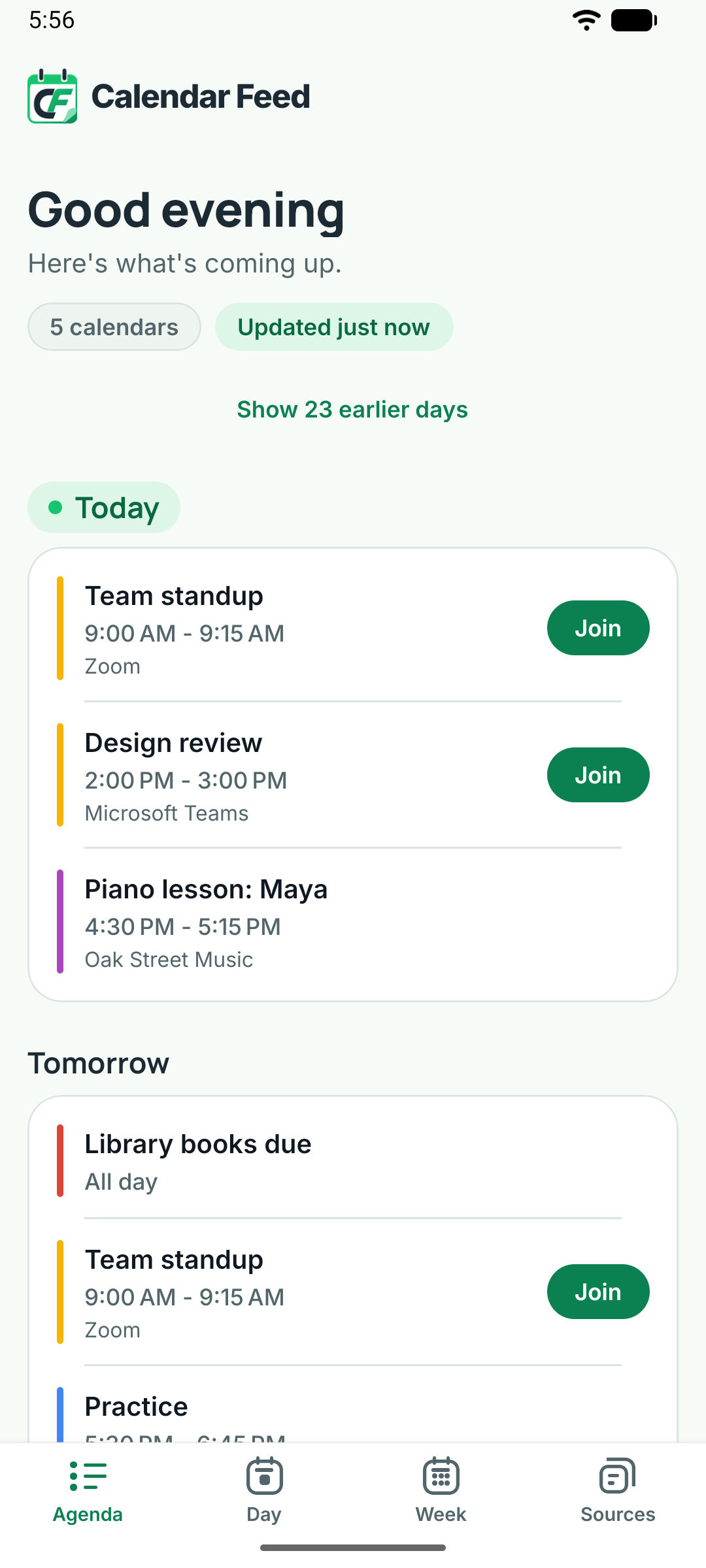
Everything appears in one day-by-day agenda, with Day and Week views too. Pull down to refresh any time.
For Android phones
A look inside
Four screens, nothing extra
Your agenda, the week ahead, your sources with their last refresh, and the details of any event.
Agenda 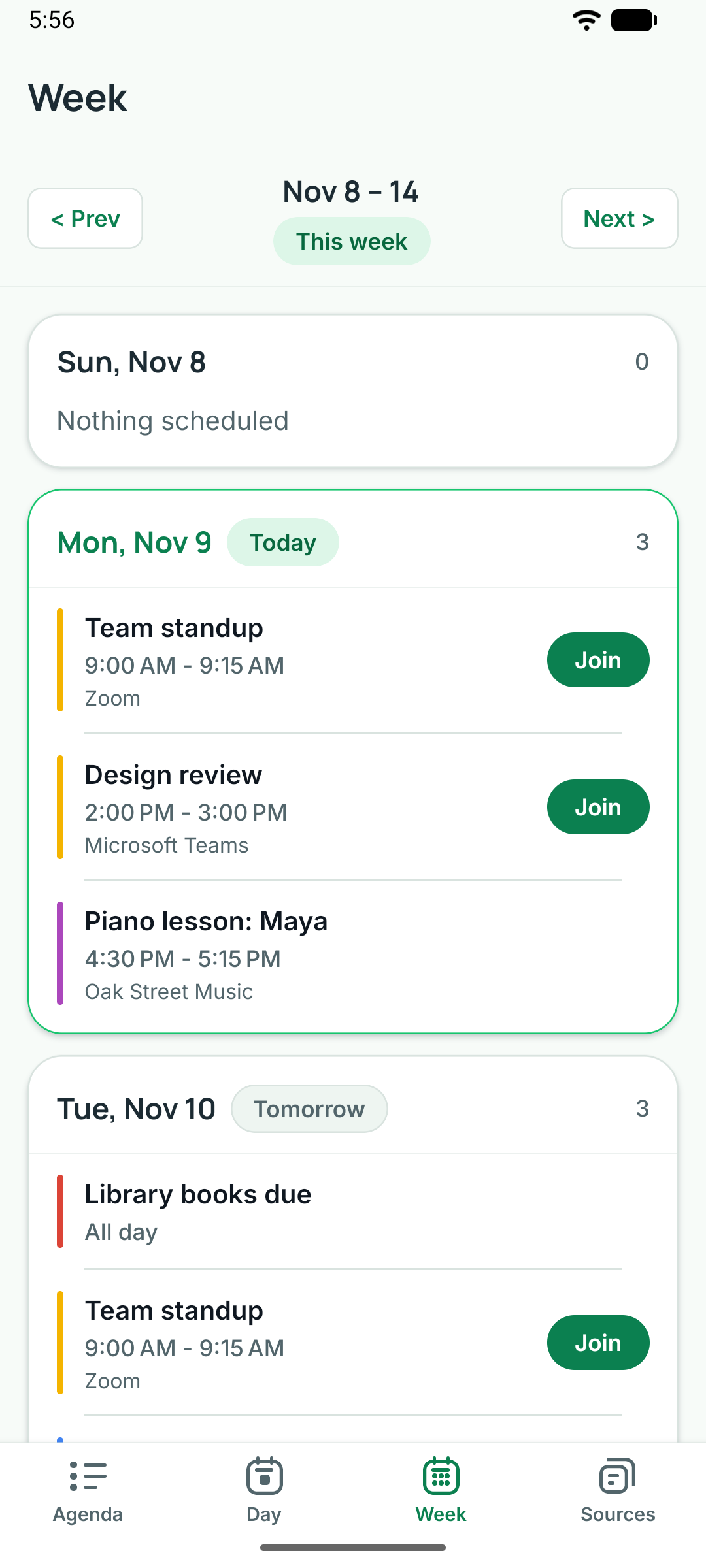
Week 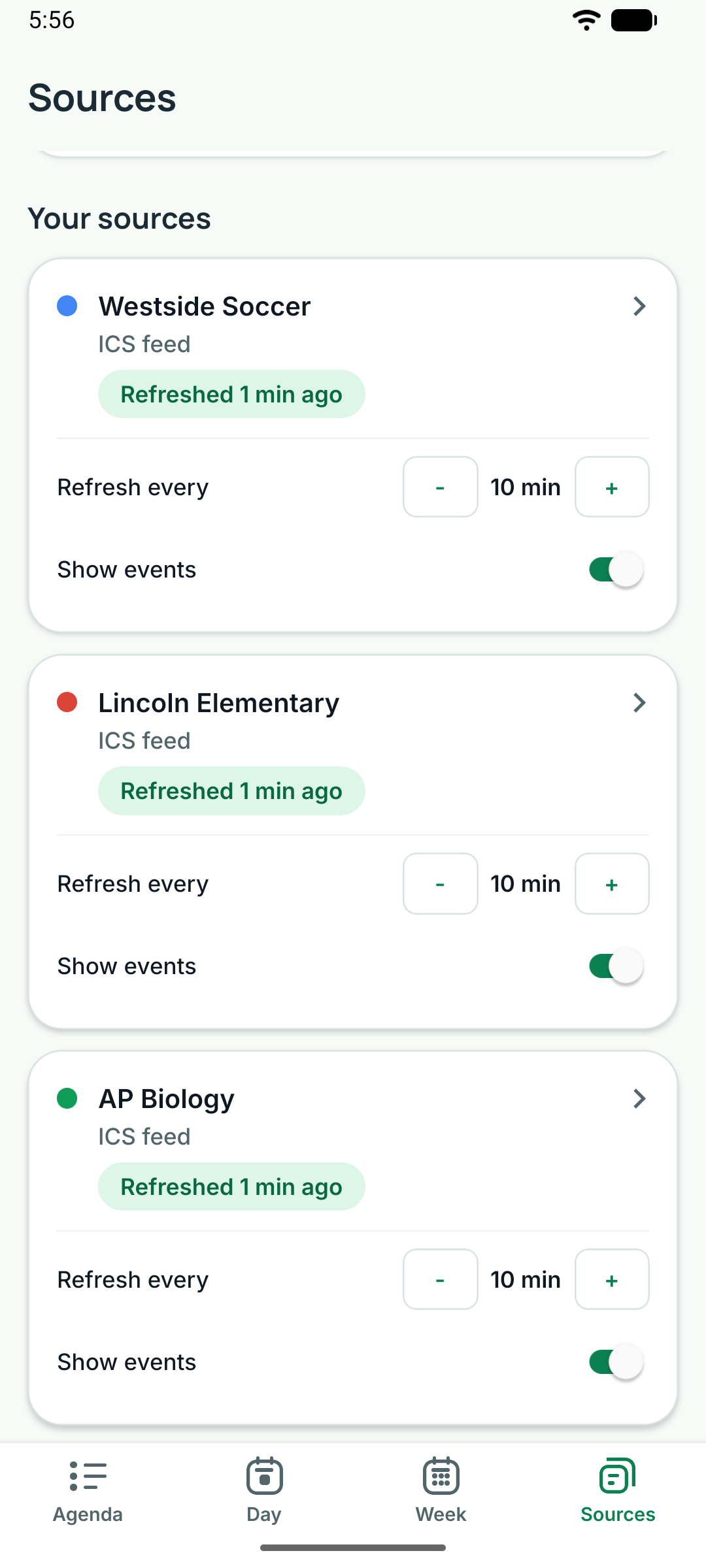
Sources 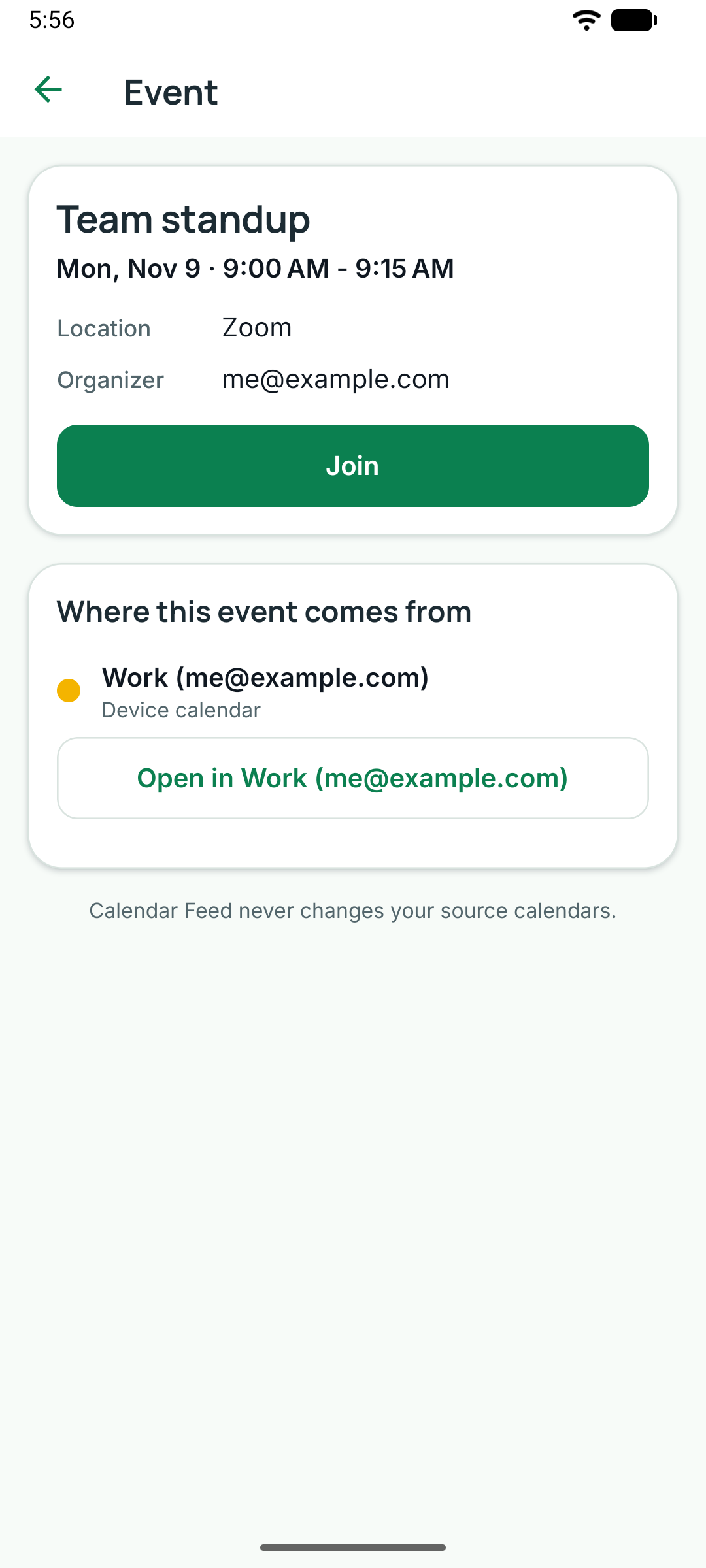
Event details
Features
One agenda, honest about how fresh it is
Everything in one place, with a clear signal when a calendar falls behind.
Everything in one agenda
The calendars on your phone and the calendar links you subscribe to, together in one list, day by day.
See when each source last refreshed
Every source shows its last successful refresh, and a Stale badge appears when one falls behind.
Join meetings in one tap
A Join button appears for Zoom, Microsoft Teams, Google Meet and Webex links, right in the list.
Never goes blank
If a feed can’t be reached, its last known events stay on screen and the source is flagged.
Duplicates shown once, when they clearly match
The same event from two sources appears once, marked with both colors. If it can’t be sure, it shows both.
Read-only by design
It can’t create, change or delete events, and it asks only for permission to read your calendar.
Also in the app
Your refresh interval
Every 5, 10 or 15 minutes while the app is open, plus on open and on pull-down.
Agenda, Day and Week
Scroll day by day from today, or step through a day or a week at a time.
A color for every source
See where each event came from, and switch any source on or off.
Repeats and time zones
Repeating events, one-off changes and time zones, and it follows your phone when you travel.
Refresh history
Open a source to see recent refreshes, its success rate and why the last one failed.
Saved on your phone
What Calendar Feed last loaded stays viewable when you’re offline.
Who it’s for
Made for anyone with more than one calendar
Parents
School, team and family together.
If your school or league offers a calendar link, add it once and see the week next to the family calendar already on your phone.
- Each source in its own color
- See when the team calendar last refreshed
Students
Class feeds next to everything else.
Paste your Canvas calendar feed or any class calendar link, and see what it lists alongside the rest of your plans.
- Standard .ics and webcal links
- Day and Week views for planning ahead
Work and life
Two calendars, one view.
When your work and personal calendars are both on your phone, see them together and join calls in one tap.
- Join for Zoom, Teams, Google Meet and Webex
Some employer-managed phones keep the work calendar inside the Outlook app, where other apps can’t read it.
Privacy
Your calendar stays on your phone
The Calendar Feed app has no servers, no accounts and no analytics. It reads your calendars, shows them to you, and that’s it.
No account
No sign-up and no sign-in. Open the app and start adding calendars.
No servers behind the app
The app connects only to the calendar links you add, including our sample feeds if you try one. Like any download, those sites see your phone’s IP address.
No analytics or ads
The app contains no analytics, crash-reporting or advertising code.
Read permission only
It asks to read your calendar only when you add phone calendars, and never asks to change it.
Stored on your phone
Sources and events stay in the app’s private storage. Android cloud backup is turned off for this app.
Remove anything
Removing a source deletes its saved events and history. Uninstalling removes everything.
FAQ
Questions, answered
What is a calendar link (ICS or webcal), and where do I find one?
A calendar link is a web address, usually ending in .ics or starting with webcal://, that publishes a calendar so other apps can read it. Schools, sports leagues, course sites and calendar services often offer one. Some common places to find yours:
- Google Calendar (on a computer): Settings, then choose the calendar under “Settings for my calendars”, then Integrate calendar, and copy the Secret address in iCal format. The public address only works if the calendar is public. Treat the secret address like a password.
- Outlook.com: Settings, then Calendar, Shared calendars, Publish a calendar. Pick the calendar, publish it, and copy the ICS link.
- Canvas: open Calendar, then select Calendar Feed (a Canvas option that happens to share our name) and copy the link.
Then open Calendar Feed, go to Sources and paste the link. The link must open without a sign-in; password-protected calendars aren’t supported. Treat private links like a password: anyone who has one can see that calendar.
Will Calendar Feed change my calendars?
No. Calendar Feed is read-only. It can’t create, edit or delete events, and on Android it asks only for permission to read your calendar. Removing a source from Calendar Feed never touches the original calendar.
How often does it refresh?
While the app is open, Calendar Feed refreshes when you open it, when you switch back to it, and on a timer you set for each feed: every 5, 10 or 15 minutes (10 by default). The shortest setting among your feeds drives one shared timer, and each refresh updates all your sources. You can also pull down on the Agenda, Day or Week screen, or tap “Refresh all now” on the Sources tab.
When the app is closed, Android may refresh your calendars in the background from time to time, on its own schedule. Every source shows when it last refreshed successfully, so you always know how current it is.
Does it work with Google Calendar or Outlook?
Calendar Feed doesn’t sign in to any account. It works with those calendars in two ways: it can show calendars that are already synced to your phone (for example, a Google account added in Android settings), and it can subscribe to a calendar link published from Google Calendar, Outlook.com and many other services.
On some employer-managed phones, the work calendar is kept only inside the Outlook app, where other apps can’t read it.
Does it send reminders or notifications?
No. Calendar Feed is a place to see everything together; it doesn’t send notifications or reminders. Keep using your phone’s calendar app for alerts.
Do I need an account or an internet connection?
There’s no account. Feeds need a connection to update, but the events Calendar Feed last loaded stay viewable offline. It keeps roughly the past 30 days and the next 6 months.
Which devices does it run on?
Calendar Feed is an Android app, made for phones held upright. Coming soon to Google Play.
How do I get help or send feedback?
Email support@calendarfeed.app or visit the support page for setup help and troubleshooting.
Bring your calendars together.
Your phone’s calendars and the calendar links you subscribe to, in one read-only agenda. No account needed.
For Android phones